One of the most frustrating parts of importing data into Backdrop CMS, are dates...
Importing Dates and formatting Dates when importing with Feeds from a CSV file.
When importing a large dataset as a one-off, it's sometimes easier to manipulate the data in a spreadsheet to make it easier to import... especially where dates are concerned.
But for regular imports from CSV files playing with the date import can be frustrating.
Normally, importing dates are expected to be in the Unix timestamp format, but if your data is in a DD/MM/YYYY or MM/DD/YYYY format things can get a bit tricky.
I knew I had to convert the date format with this module (Feeds Tamper) but after about four hours of experimenting trying to import a supplier invoice with a date format of DD/MM/YYYY I had no luck, so, I decided to look at the code.
So, while it's an easy solution, it's not intuitive by any stretch of the imagination...
When using the Feeds Tamper plugin "String to Unix timestamp" the instructions say "This will take a string containing an English date format and convert it into a Unix Timestamp."... but, the PHP code to convert the string is "strtotime()"... on further investigation... this function will convert the string to a date/time value, but it uses the number separator to decide on the date style...
It assumes 11/11/2023 is an American formatted date in MM/DD/YYYY format... so my UK date of 23/11/2023 failed and returned an empty value.
But, if the separator is a dash "-" then it assumes the date is a UK formatted date, i.e. 23-11-2023 DD-MM-YYYY.
The description on the function strtotime() is: - Dates in the m/d/y or d-m-y formats are disambiguated by looking at the separator between the various components: if the separator is a slash (/), then the American m/d/y is assumed; whereas if the separator is a dash (-) or a dot (.), then the European d-m-y format is assumed.
So, we need to do a two-pronged attack on the date field we want to import, and it's pretty simple :)
We need to add to plugins on the Tamper tab for the date.
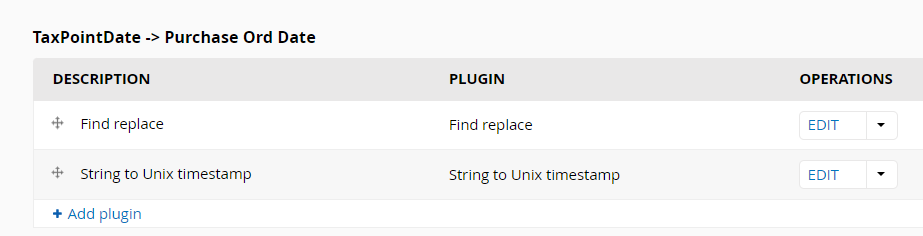
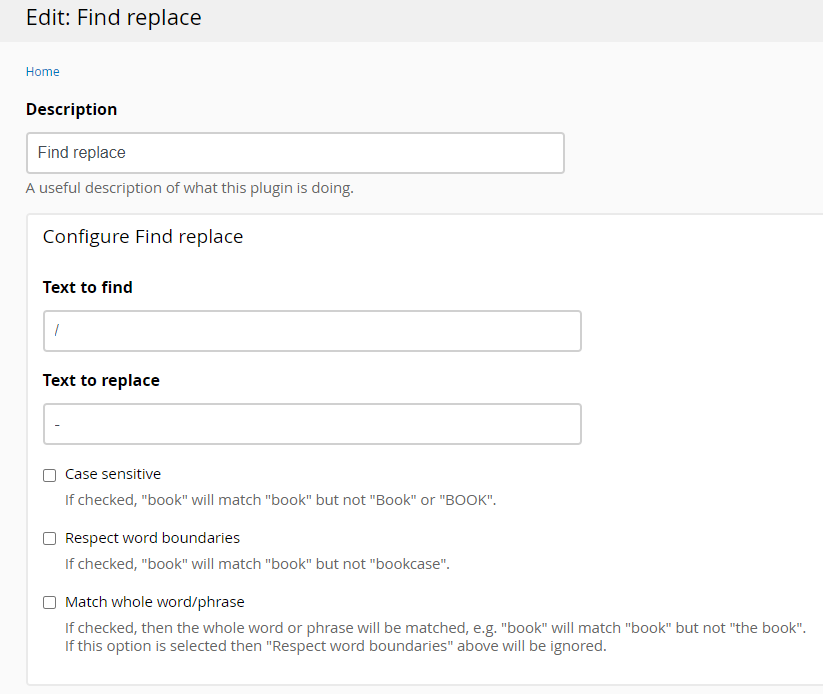
You can use the Regex but I used the "Find replace" plugin... and configured it like this...
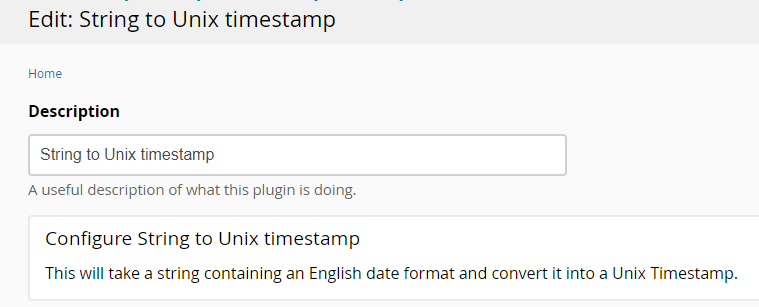
And then added the "String to Unix timestamp"... there's nothing to configure.
It's as simple as that.